NOTE – This post was uploaded at 28/08/2025, so the information below may be out of date if viewed in the future.
One of the objectives in my project was to use environment variables to store SharePoint document URLs, enabling Generative Answers to access and read the documents directly.
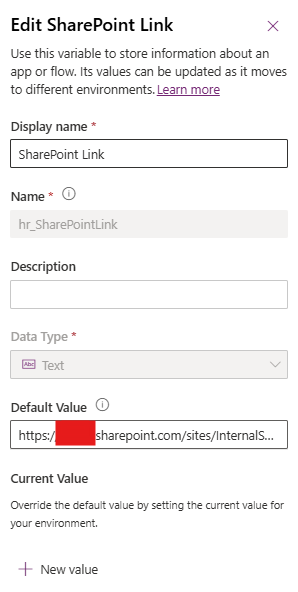
Create your Environment Variable
In this case I have called the variable ‘SharePoint Link’.
To ensure this works correctly, you’ll need to format your SharePoint URL in a specific way. Most links include encoded characters—such as %20 for spaces—which should be removed. You can use AI tools to help clean and simplify the URL as needed.
My link looks like something like this – https://abcd.sharepoint.com/…/User Guide – PSA Resourcing Tool – Sales 3.docx. As you can see that the link contains no encoded URL materials.
Add the URL to the Environment Variable.
Create and Structure Generative Answer
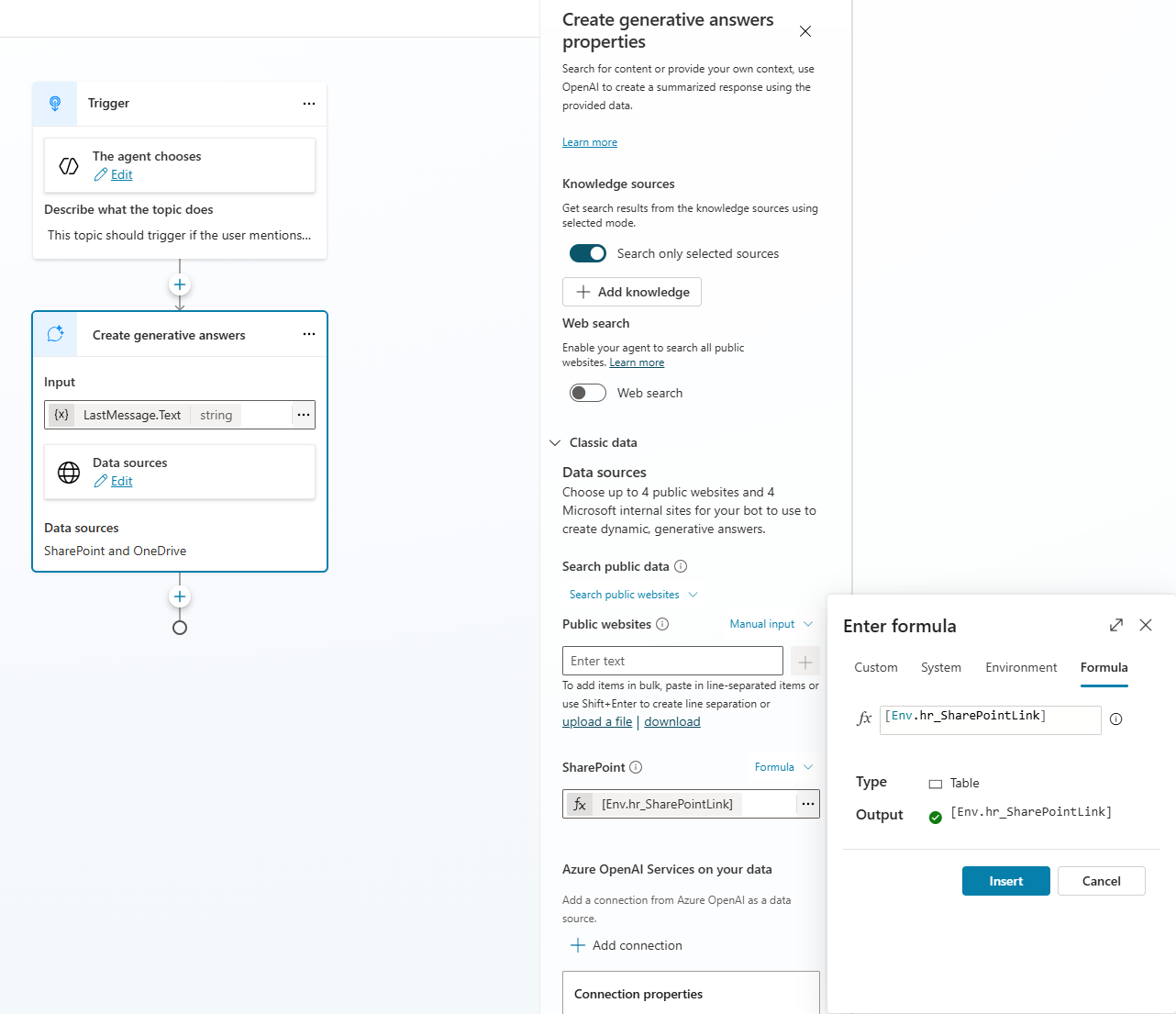
If you want a Generative Answer node to reference a specific document in SharePoint using an environment variable that contains the document’s URL, you’ll need to use SharePoint Classic Data. In the formula, reference the environment variable using square brackets—for example: [Env.hr_SharePointLink].
Make sure the ‘Search only selected sources’ option is set to Yes. This ensures that the Generative Answer will use only the specified SharePoint URL as its search source, rather than pulling information from other locations.
If you want to reference multiple SharePoint URLs for a Generative Answer to search against, you can do so by using a comma-separated list of environment variables, all enclosed within square brackets. For example:
[Env.hr_SharePointLink, Env.hr_SharePointLink2, Env.hr_SharePointLink3]
This format allows the Generative Answer to search across multiple documents defined by the specified environment variables.
Test the Response
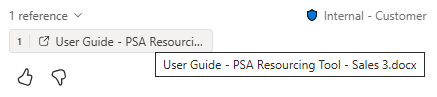
Ensure that the response is giving you information from that document. I have blurred the image as it contains sensitive information.

Ensure that the response is pulling information directly from the intended document. In this example, the image has been blurred to protect sensitive content.